
CBSE Class 10 · Information Technology 402 · 2026–27
A library has books, loans and questions: which science books cost less than ₹300? Which titles need more copies? Build a small fictional library database and learn how each Base object helps you answer.
- Choose fields, data types and keys that represent the data clearly.
- Create tables and preserve valid relationships between them.
- Build queries with exact criteria and check the returned records.
- Use forms for entry and reports for organised output.
Turn separate facts into useful information
Data are recorded facts, such as a book’s title, price and number of copies. Information is what those facts tell you when organised for a purpose: for example, “the library has two science titles”. A database stores related data in a structured way so it can be searched, updated and reused.
A field is one attribute, such as Price. A record contains the fields describing one item. A table stores records with the same structure. In the fictional Books table below, there are five records and five fields; the header labels are not an extra book record.
| BookID | Title | Category | Price (₹) | Copies |
|---|---|---|---|---|
| B01 | River Stories | Fiction | 180 | 3 |
| B02 | Star Atlas | Science | 320 | 2 |
| B03 | River Science | Science | 240 | 4 |
| B04 | Garden Poems | Poetry | 150 | 5 |
| B05 | Sky Stories | Fiction | 260 | 1 |
A DBMS manages a database. A relational DBMS organises data into related tables. A hierarchical model uses a tree of parent-child links; a network model permits a more connected structure; the relational model represents data through tables and relationships.
Base provides four important object types. Tables hold records; queries select or calculate answers; forms provide a convenient entry interface; reports arrange output for reading or printing. A form is not an extra copy of the table’s data.
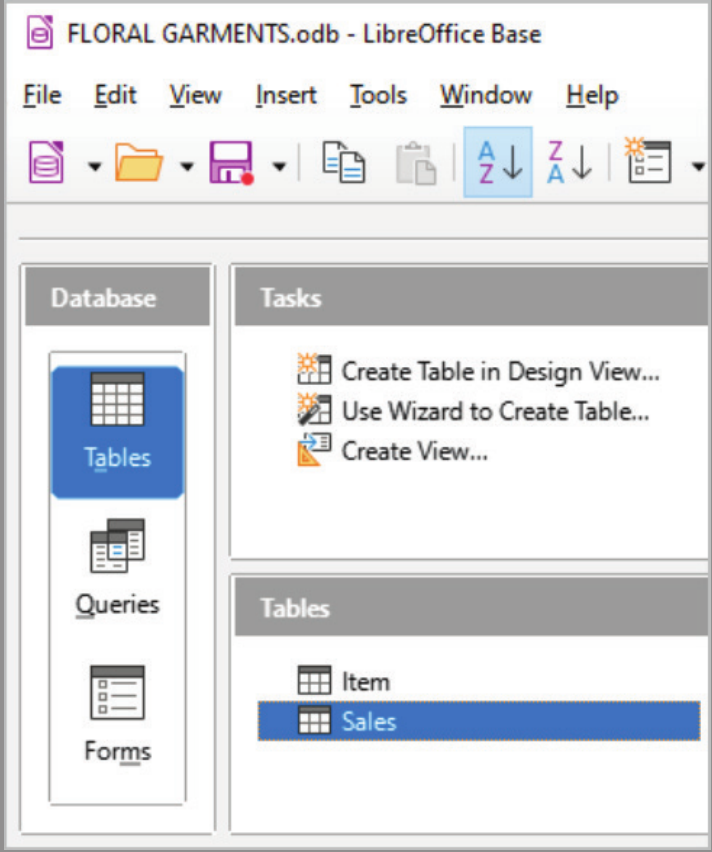
Open Base through the LibreOffice Start Centre or File > New > Database. Choose to create a new database, follow the wizard and save Library.odb. Whether a database is registered controls its availability to other LibreOffice documents; it does not mean publishing it online. Identify the Database pane, Tasks area and list of saved objects before creating your first table.
Pause. Think. Try.
Choose your answer, then check the explanation.
Apply it. Explain it.
Compare with a worked answer
A field is one attribute, such as Price. A record is the complete set of values for one book, such as B01, River Stories, Fiction, 180 and 3.
- Defines a field with a suitable attribute.
- Defines a record with values about one book.
Choose data types and keys before typing
A field’s type controls the kind of value it stores. BookID is text because it contains letters and digits. Price needs a numeric type such as Decimal so arithmetic is meaningful. Copies is an integer. A borrowing date needs a Date field; a returned/not-returned flag can use a Yes/No field.
| Field | Suitable design | Reason |
|---|---|---|
| BookID | Text, length 6, primary key | Stable code such as B01 |
| Title | Text, length 60, required | A readable title |
| Category | Text, length 20 | A group such as Science |
| Price | Decimal, precision 8, scale 2 | Prices with two decimal places |
| Copies | Integer | A whole-number quantity |
A primary key identifies each record uniquely and cannot be empty. Titles are poor keys because different books may share a title. BookID is a deliberate unique code. A foreign key in another table refers to the related key; it may repeat when several records refer to the same book.
Text length is a character-capacity rule, not a promise that every character occupies one storage byte. Decimal precision counts total digits; scale counts digits after the decimal point. Formatting a value as currency changes how it appears, while its data type determines what it is.
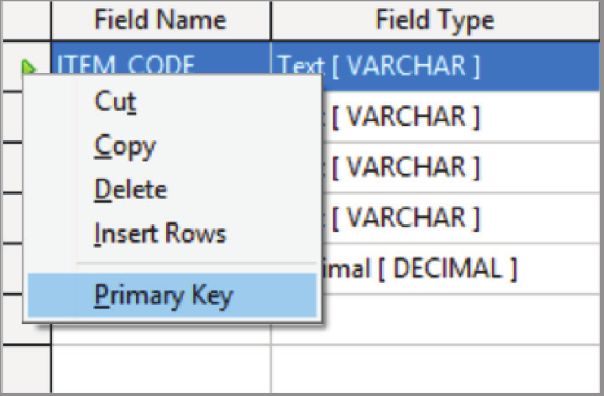
In Table Design, select the BookID row header and choose Primary Key from its context menu. Confirm the key symbol appears. Try to enter B01 twice: a correctly enforced primary key should reject the duplicate, protecting the identity of the original record.
Pause. Think. Try.
Choose your answer, then check the explanation.
Apply it. Explain it.
Compare with a worked answer
Use an assigned BookID. Each BookID must be unique and non-empty. The title can remain a separate ordinary text field.
- Suggests a suitable unique identifier such as BookID.
- States both uniqueness and non-empty requirements.
Build a table you can enter data into
Table Wizard helps you start from sample fields. Choose Tables > Use Wizard to Create Table, select useful fields, set their names and types, choose a primary key and give the table a clear name. Do not keep unsuitable sample fields merely because the wizard offered them.
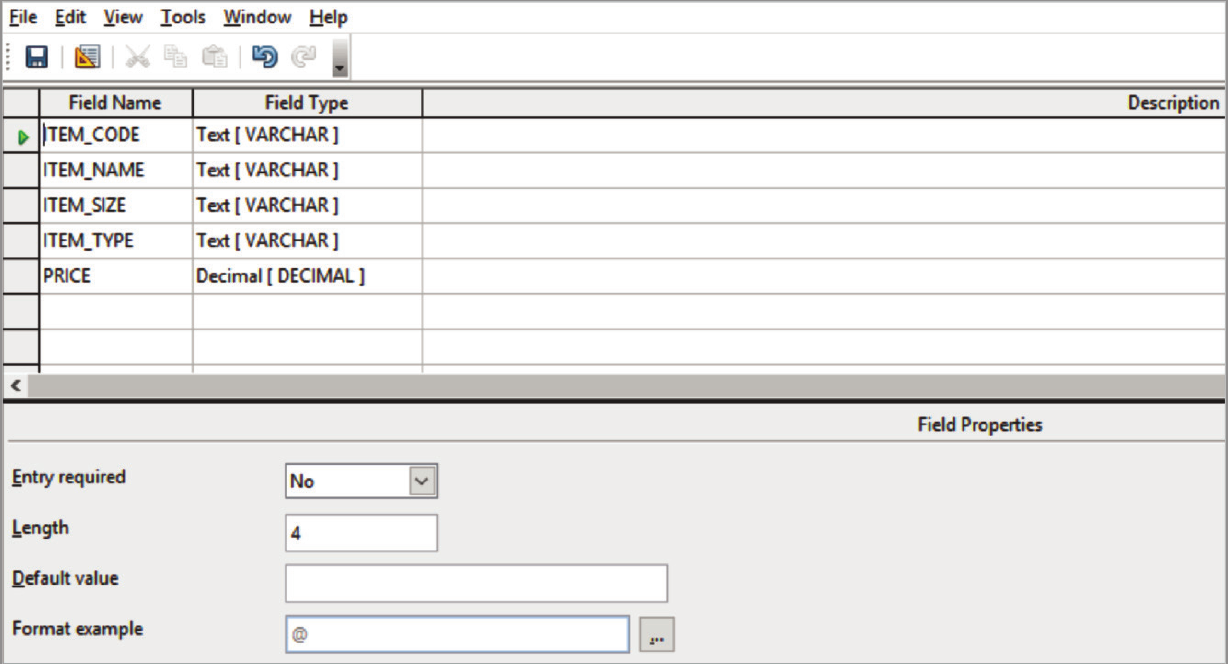
For precise control, choose Create Table in Design View. Enter BookID, Title, Category, Price and Copies with the types from the previous topic. The optional Description column explains a field’s purpose; it is not the place to type the first book’s value.
Select a field to inspect its properties below the design grid. Entry required prevents a missing value where a field must be completed. Length limits a text field’s characters. A default value supplies a starting value, such as 0 copies; it does not prove that the value is factually correct. Numeric fields may offer precision and decimal-place settings.
- Set BookID as the primary key and make Title required.
- Save the table as Books and close its design window.
- Open Books in data view.
- Enter B01, River Stories, Fiction, 180 and 3 across the first record.
- Move to the next record or use Save Record, then reopen the table to check the saved values.
The test has two parts: the structure must be suitable and the entered data must be accurate. If a numeric field rejects a letter, it may be doing its job. If you discover the type is wrong after entering records, back up the database before changing the structure.
Pause. Think. Try.
Choose your answer, then check the explanation.
Apply it. Explain it.
Books needs BookID (Text), Title (Text), Category (Text), Price (a suitable decimal numeric type) and Copies (Integer). The first record is B01, River Stories, Fiction, 180, 3.
Give four steps to create Books in Design View with BookID as the primary key and then enter this record.
Compare with a worked answer
- Open Tables and Create Table in Design View.
- Define the fields and suitable data types; make BookID the primary key.
- Save the table as Books and open it in data view.
- Enter a complete record, save it and verify the values.
- Opens Table Design.
- Defines suitable fields/types and key.
- Saves and opens the table for entry.
- Enters, saves and checks the record.
Edit one record without damaging the table
Data view is for working with records. Design view is for changing the table structure. Confusing the two can turn a small correction into a large loss: deleting a record removes one book; deleting the table removes the whole Books object and its records.
To correct a value, open Books, locate the intended BookID, edit the appropriate field and save the record. For a practice deletion, use a disposable sample record, select its row header and choose Delete Record. Read the confirmation carefully. Deletion in a database is not something to assume can always be undone.
Sorting changes the displayed order, not the underlying meaning or identity of the records. Click the Price field and use ascending sort for low to high. On the five-book sample, the order is B04 (150), B01 (180), B03 (240), B05 (260), B02 (320). Descending order reverses that sequence. For ties, use an additional sort field when a predictable order matters.
Use navigation buttons to move between records or to the new-record row. The record position shown on a navigation bar is not automatically the primary-key value: record 3 might have BookID B04 after sorting.
To change a field definition, close the table’s data view, choose Edit for the table and inspect Design View. Back up before reducing field lengths, changing types or deleting fields; existing values may no longer fit. A good completion check compares the record count and a few known BookIDs before and after the edit.

Pause. Think. Try.
Choose your answer, then check the explanation.
Apply it. Explain it.
Compare with a worked answer
Deleting a record removes one row. Deleting a table removes the table object and its records. Preserve a current backup and confirm the exact selected item before a destructive change.
- Correct record/table distinction.
- Suitable backup and selection-check precaution.
Connect tables without repeating everything
Do not repeat a book’s title and price every time it is borrowed. Keep one Books table and a Loans table with LoanID, BookID, BorrowerCode and LoanDate. LoanID is the Loans primary key. Loans.BookID is a foreign key referring to Books.BookID.
One book can appear in many loan records over time, so Books-to-Loans is one-to-many. A one-to-one example is a book record connected to one separately stored inventory-detail record. Borrowers and books are many-to-many over time; a Loans table connects them through individual borrowing events.
- Create and save both tables with compatible linked field types.
- Open Tools > Relationships in the database window.
- Add Books and Loans.
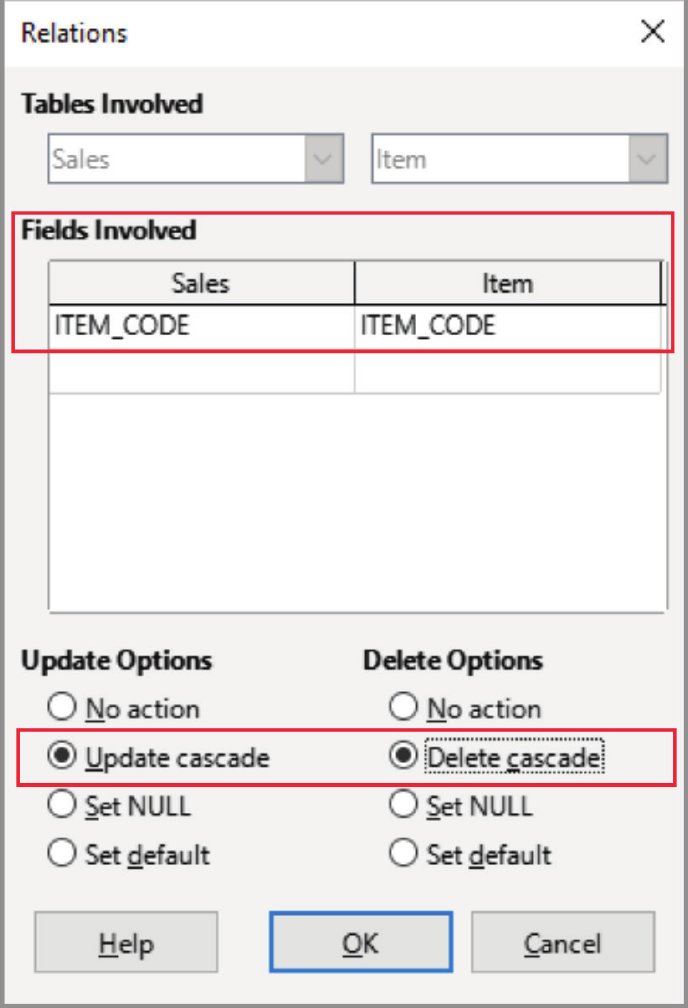
- Drag Books.BookID to Loans.BookID and inspect the relationship settings.
- Save the relationship design, then test valid and invalid sample entries.
Referential integrity keeps the link meaningful. If B01 exists in Books, a loan referring to B01 can be valid. A non-empty foreign-key value B99 must not be accepted when B99 does not exist in the referenced Books key.
The update/delete choices need thought. No action can block a parent deletion that would leave dependent records. Update cascade propagates an allowed key change. Delete cascade can remove matching child records when a parent is deleted, so it is not a harmless default to select for every library database.
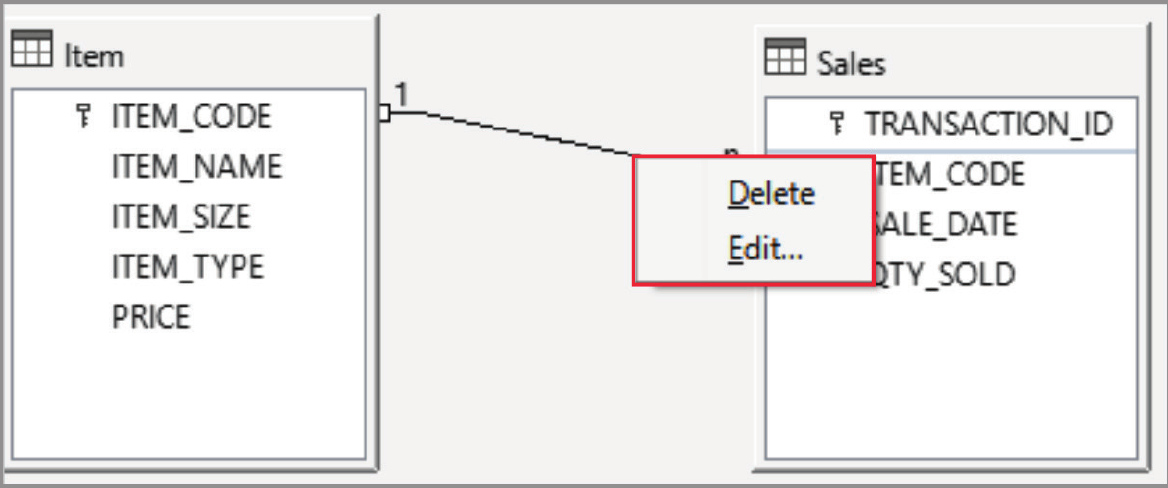
To inspect a relation, use its line’s context menu and choose Edit. Removing the relationship line is not the same as deleting either table, but it can remove a rule protecting the data. Confirm the intended rule rather than deleting it just to bypass an error.
Pause. Think. Try.
Choose your answer, then check the explanation.
Apply it. Explain it.
Compare with a worked answer
Loans.BookID is a foreign key referring to Books.BookID. Rejecting B99 prevents a loan record from referring to a book that has no parent record, preserving referential integrity.
- Identifies the foreign key and referenced parent key.
- Explains prevention of an unmatched parent reference.
Ask a question without copying the whole table
A query selects, sorts or calculates information from tables. Saving a query saves the instructions for the question; running it reads the relevant current data. A query result should not be mistaken for a permanent independent copy of the whole database.
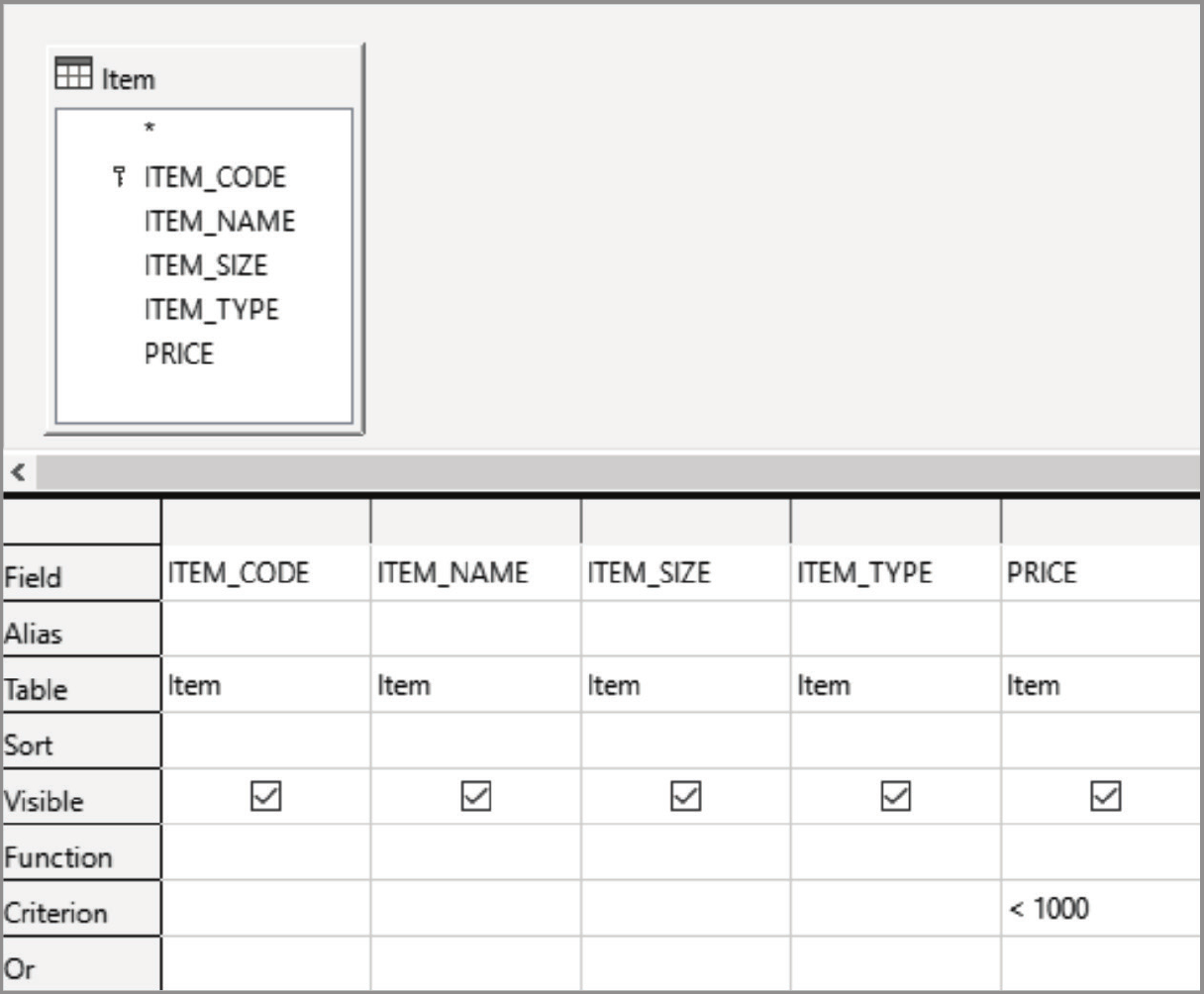
To build a guided query, choose Queries > Use Wizard to Create Query. Select Books and move BookID, Title and Price into the chosen fields. Pick Price ascending for the sort order. Add the condition Price is less than 300, choose a detailed query, give it a name such as BooksBelow300 and finish. With the sample data, the ordered IDs are B04, B01, B03 and B05.
For direct control, use Create Query in Design View. Add Books, double-click the fields you need and inspect the grid. Field chooses the attribute; Table identifies its source; Sort sets ordering; Visible controls whether it appears in the output; Criterion selects matching records.
A field can help filter the data without being displayed. For example, show Title but use Price as a hidden criterion field. Hiding the Price output column does not remove the Price test.
Run the query to inspect its result, then save it. To modify it, right-click the saved query and choose Edit. Check the result with a small table you can calculate manually. If a query returns no rows, first check the data, comparison operator and text spelling; an empty result can be a correct answer rather than a software failure.
Pause. Think. Try.
Choose your answer, then check the explanation.
Apply it. Explain it.
Compare with a worked answer
- Create a query using Books in Wizard or Design View.
- Select Title and Price as output fields.
- Set Price < 300 and Price ascending.
- Run, verify and save it with a meaningful name.
- Selects the source table.
- Selects the required output fields.
- Sets the correct criterion and sort.
- Runs/checks and saves the query.
Read AND, OR and wildcards precisely
Use the same five-book table to test every rule before trusting a larger result.
| BookID | Title | Category | Price (₹) | Copies |
|---|---|---|---|---|
| B01 | River Stories | Fiction | 180 | 3 |
| B02 | Star Atlas | Science | 320 | 2 |
| B03 | River Science | Science | 240 | 4 |
| B04 | Garden Poems | Poetry | 150 | 5 |
| B05 | Sky Stories | Fiction | 260 | 1 |
AND requires both conditions. Category is Science AND Price < 300 returns B03 only. OR accepts either condition: Category is Fiction OR Price < 200 returns B01, B04 and B05. B01 satisfies both conditions, but appears once.
In Base’s design grid, conditions across the same criterion row combine with AND. Alternative criterion rows combine with OR. For “Science or Fiction, but always Price < 300”, put Science and <300 on the first row, then Fiction and <300 on the alternative row. Repeating the price rule matters; otherwise one branch may admit expensive records.
BETWEEN 180 AND 260 includes both endpoints, so it finds B01, B03 and B05. Use > or < when the boundary should be excluded. For text matching in the design interface, LIKE 'River*' finds titles beginning with River: B01 and B03. The asterisk represents any number of characters; a question mark represents exactly one. Keep text values in single quotes where required by the criterion.
For a single exact title, use equality instead of a wildcard. Case matching can depend on the database, so use the case shown in the sample while learning the rule.
Change the conditions in the query lab and predict the returned titles before running it. Explain one record that passes and one that fails; this is a stronger check than memorising the result count.
Try the idea
For the five-book table, Science AND Price < ₹300 returns B03; Fiction OR Price < ₹200 returns B01, B04 and B05. BETWEEN ₹180 and ₹260 includes B01, B03 and B05, including the endpoints. Titles beginning with River are B01 and B03.
Pause. Think. Try.
Choose your answer, then check the explanation.
Apply it. Explain it.
Compare with a worked answer
(a) B01, B04, B05. (b) B03. B01 matches both branches of the OR condition, but it is still one matching record.
- Correct (a): B01, B04, B05.
- Correct (b): B03.
- Explains OR accepts either condition.
- Explains one matching record is not duplicated merely for satisfying both branches.
Calculate from data, then check the total
A query can answer a numerical question without adding a permanently duplicated total to every record. In the Books table, Price is the cost of one copy and Copies is the quantity. A calculated field "Price" * "Copies", with alias StockValue, gives the value of each title’s copies. Enter the expression as a query field in Design View, supply the alias and run the query.
| BookID | Price×Copies | StockValue (₹) |
|---|---|---|
| B01 | 180×3 | 540 |
| B02 | 320×2 | 640 |
| B03 | 240×4 | 960 |
| B04 | 150×5 | 750 |
| B05 | 260×1 | 260 |
The total stock value is 3150, not the sum of the unit prices 1150. Decide what the question is asking before choosing the calculation.
Summary functions answer another kind of question. SUM adds values; AVG finds their mean; MIN and MAX find extremes; COUNT counts qualifying values or records according to the expression used. COUNT of a field does not count missing values in that field.
To summarise by Category, show the Function row, group on Category and apply the required summary to a numeric field. The total Copies are Fiction 4, Science 6 and Poetry 5. Grouping is a calculation over categories; sorting merely changes the order of rows.
Verify a summary manually using a small dataset. A correct formula applied to the wrong field can still give an incorrect answer to the real question.
Pause. Think. Try.
Choose your answer, then check the explanation.
Apply it. Explain it.
Compare with a worked answer
Book A: 180×3=540. Book B: 320×2=640. Combined total=1180. StockValue is a clear alias for Price×Copies.
- Correct first value 540.
- Correct second value 640.
- Correct combined total 1180.
- Suitable alias expressing the calculated quantity.
Build an entry screen that guides the operator
A form presents database fields as controls, making entry easier than navigating a wide table. It works with the underlying table or query; it does not create a second independent set of book records.
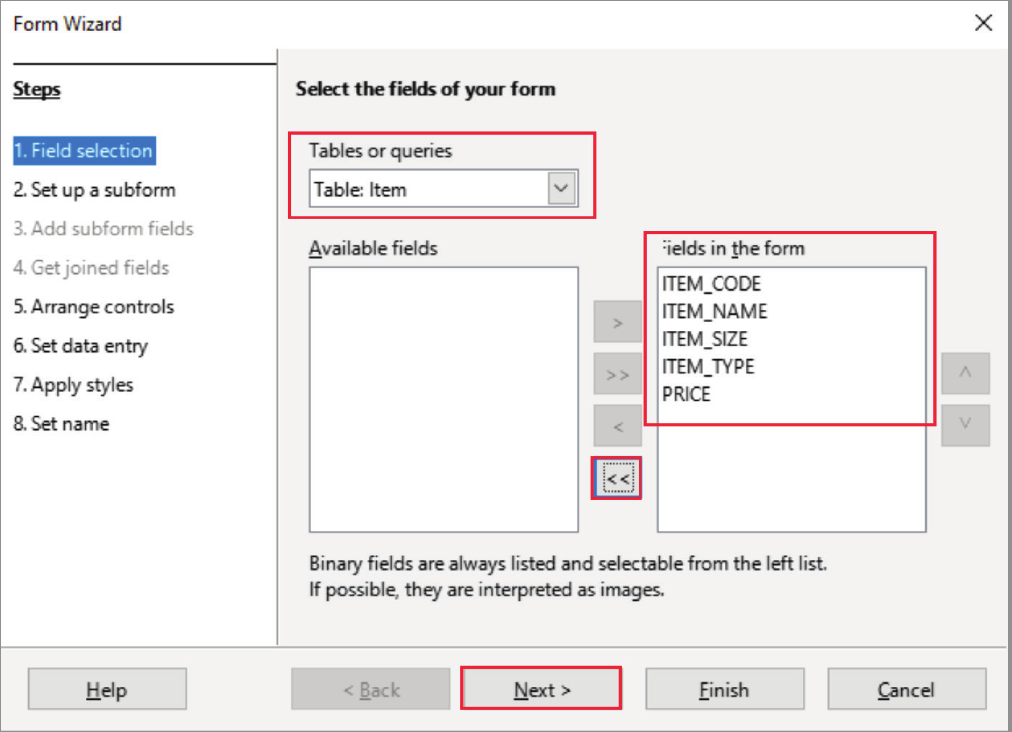
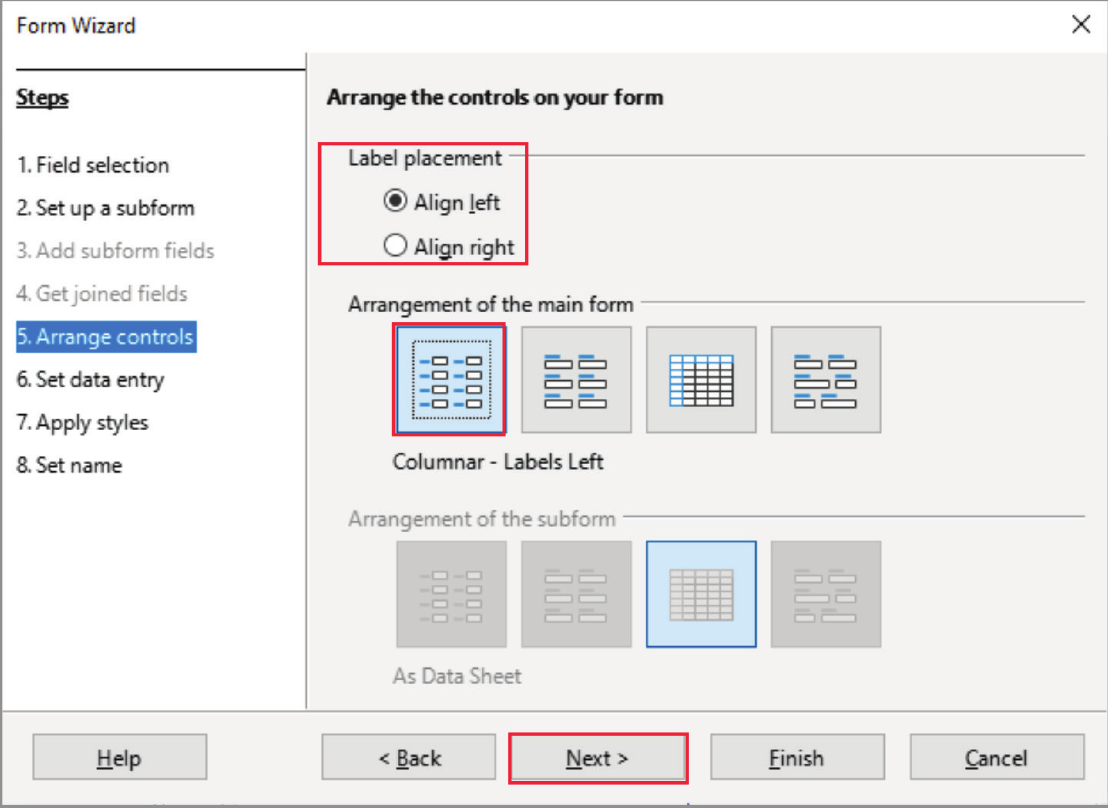
- Choose Forms > Use Wizard to Create Form.
- Select Books and move the required fields into the form. A single arrow moves a selected field; the double arrow moves all available fields.
- Use a simple form without a subform for this one-table task.
- Choose a control arrangement and whether the form should show all records or support new entries only.
- Select an appearance, name it Book Entry and finish.
Use the navigation bar for first, previous, next and last records. New Record opens an entry position; Save Record commits the entered values. Use Find Record to search for a known BookID. Before Delete Record, confirm the displayed ID: this removes underlying data, not merely the screen’s text.
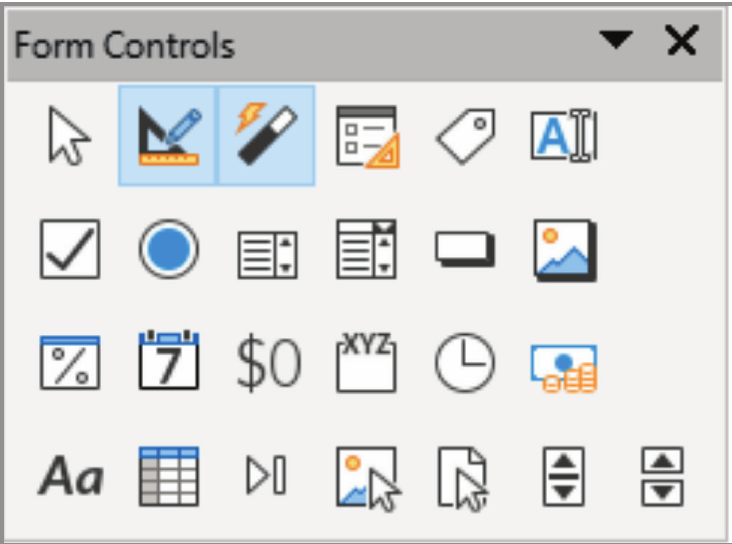
To change the form design, close it and choose Edit from its context menu. A label gives fixed explanatory text. A text box can be bound to a field; a check box suits a Yes/No field. A list box offers choices, useful for a controlled category list. Set the data field in the control’s Data properties and adjust the label, colours or background in appropriate properties.
Use a clear title and readable contrast. To verify the form, enter a new fictional B06 record through it, save, then open Books and confirm the same record exists. A pleasant-looking form is complete only when its controls read and write the intended fields.

Pause. Think. Try.
Choose your answer, then check the explanation.
Apply it. Explain it.
Compare with a worked answer
Use a checkbox for Available. Save a fictional test record through the form, then check that its values appear correctly in Books and that the checkbox value is stored in the Available field. Also verify that navigating to another record displays that record rather than stale data.
- Checkbox chosen for Available.
- A test record is saved through the form.
- Underlying table values checked.
- Control binding or correct record navigation checked.
Present the answer as a readable report
A report is the reading view of your database work. A library stock report might group books by Category and show Title, Copies and StockValue. Decide the audience’s question before choosing decoration.
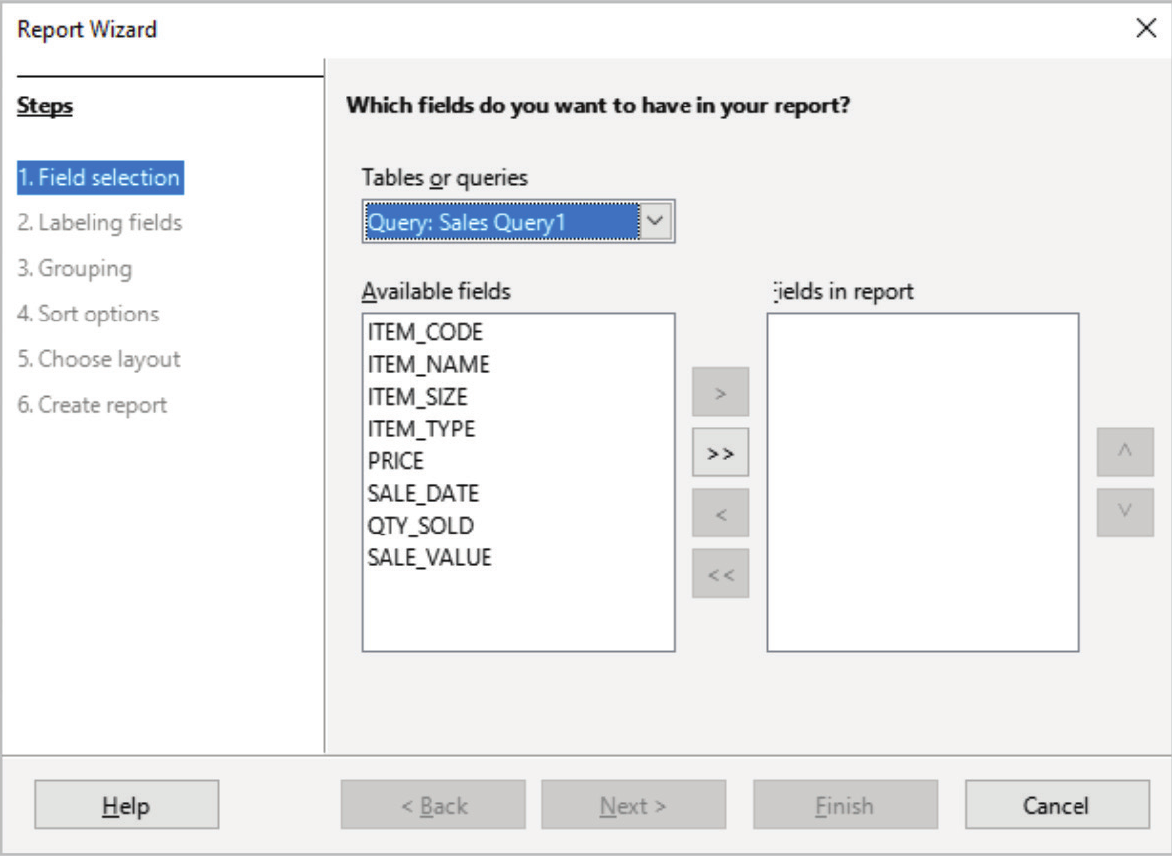
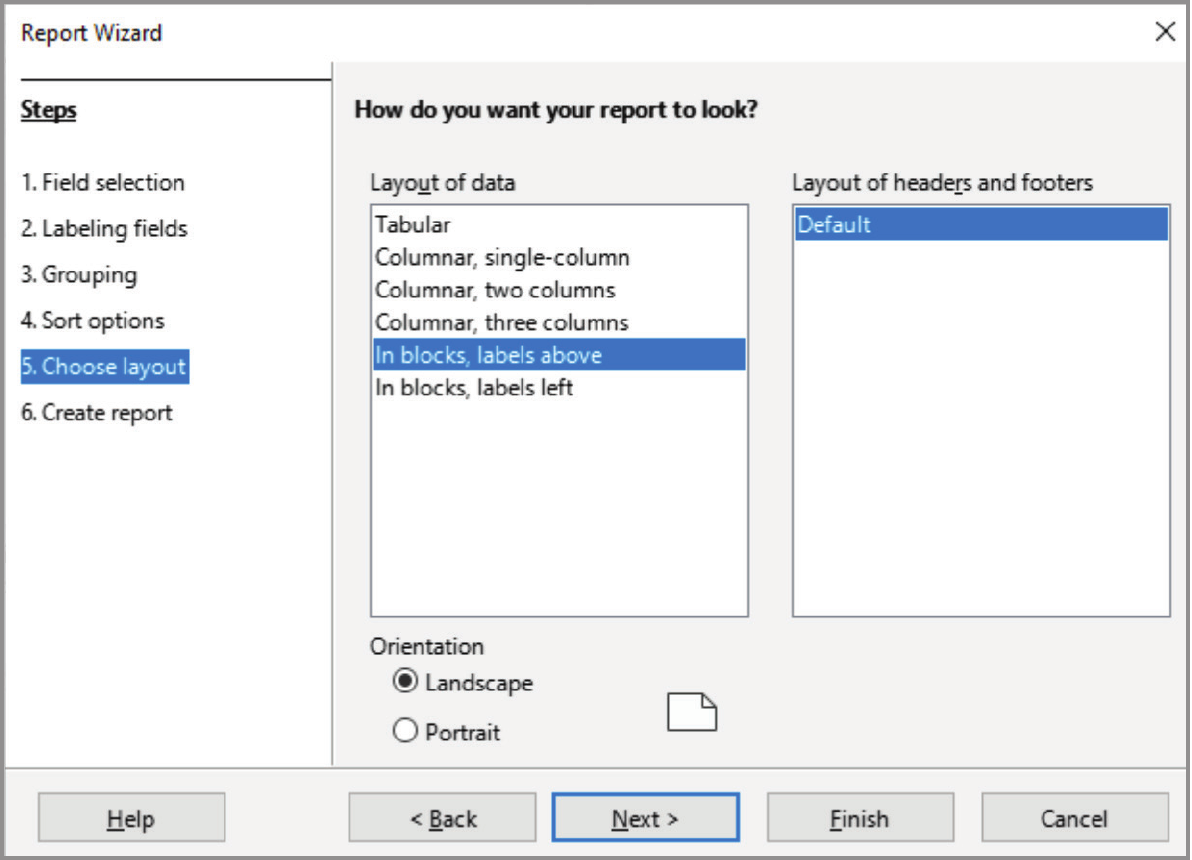
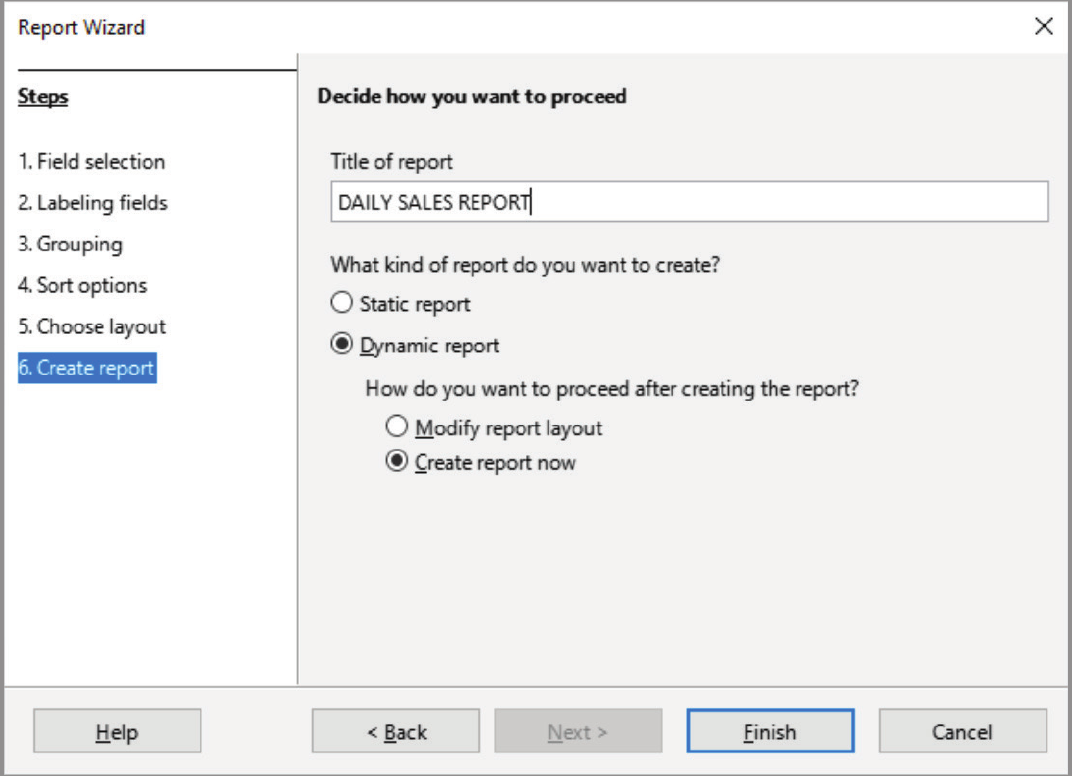
Choose Reports > Use Wizard to Create Report. Select the table or saved query supplying the data, move the required fields into the report, and replace cryptic labels with readable headings. Choose grouping fields, sort order, layout and page orientation. Name the result Library Stock and finish.
For the five-book sample, grouping by Category creates Fiction, Poetry and Science sections. Sorting Title within each group orders the books inside that section; it does not change their stored titles. Inspect whether long titles fit and whether numbers remain aligned.
A static report preserves the generated snapshot. A dynamic report can use current source data when generated again. It is not a promise that an already open page updates itself after every table edit.
For finer design, use Report Design to place fixed labels and data controls. A report header introduces the whole report; a page header can repeat column headings; the detail area contains the repeated data; a footer can hold page information. Add a meaningful title using a label field and bind data controls to the correct fields.
In Report Builder, Insert > Date and Time can add the execution date or time to the active report area. Move it to a suitable header or footer and preview the result. Generate, check the data against the source query, then inspect page breaks before printing.
Pause. Think. Try.
Choose your answer, then check the explanation.
Apply it. Explain it.
Compare with a worked answer
- Choose Books or a suitable saved query as the source and include the required fields.
- Group records on Category.
- Add a clear fixed title in the report header and readable column labels.
- Insert a date field in a suitable report area and preview the output.
- Correct source and required fields.
- Category grouping.
- Meaningful title/headings.
- Generation date and preview check.
Bring the ideas together
Explain one idea without looking, repeat one useful procedure, then revisit a question that made you pause.